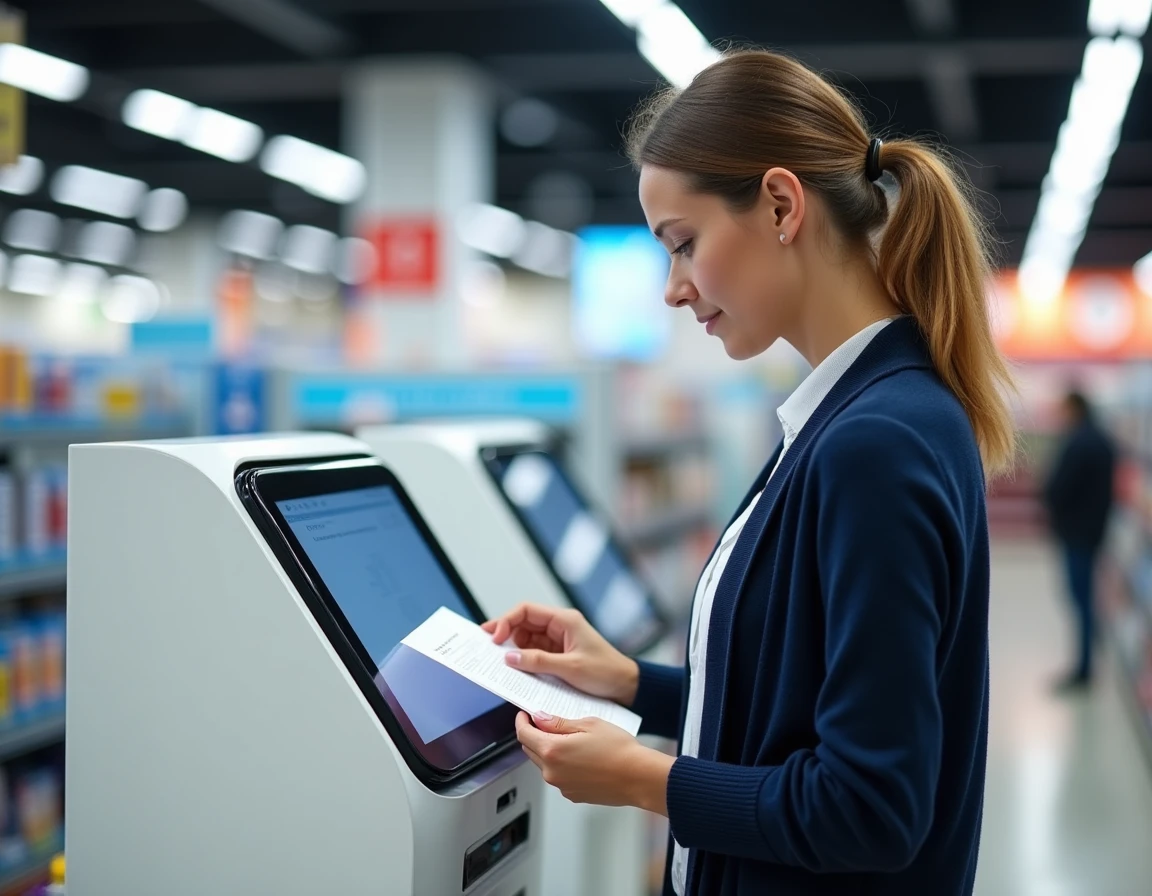
Printing a document at a Leclerc hypermarket requires checking several parameters before heading out, as the actual conditions vary from one store to another. Accepted file formats, print quality, payment methods: the elements to master are more numerous than one might think. This article measures the gaps between what the document printing service at Leclerc promises and what it actually delivers, to avoid unpleasant surprises at the kiosk.
PDF or DOCX format on Leclerc kiosks: what files become when printed
The choice of file format directly affects the printed result. Recent feedback converges on one point: PDF remains the only reliable format in self-service. A Word file (DOC or DOCX) opened on a different workstation than the one that created it can shift margins, substitute fonts, or alter pagination.
This issue does not stem from the kiosk itself but from the absence of fonts installed on your personal computer. The PDF locks in the layout, fonts, and margins. A guide that merely lists the steps for using the kiosk without mentioning this conversion misses the first factor of failure.
| Criteria | DOCX | |
|---|---|---|
| Preserved layout | Yes, locked at export | Frequent risk of misalignment |
| Fonts | Embedded in the file | Depends on the reading workstation |
| Margins | Identical to the original | Variable depending on the software |
| Kiosk compatibility | Accepted everywhere | Accepted but random results |
| Double-sided printing | Natively managed | Sometimes unavailable |
Before you go, always convert your files to PDF from any word processor (using the “Export” or “Print to PDF” function). This step takes less than a minute and eliminates most rendering issues. To better understand the overall functioning of the service, document printing at Leclerc relies on kiosks whose technical capabilities deserve to be checked store by store.
Image resolution and photo print quality at Leclerc
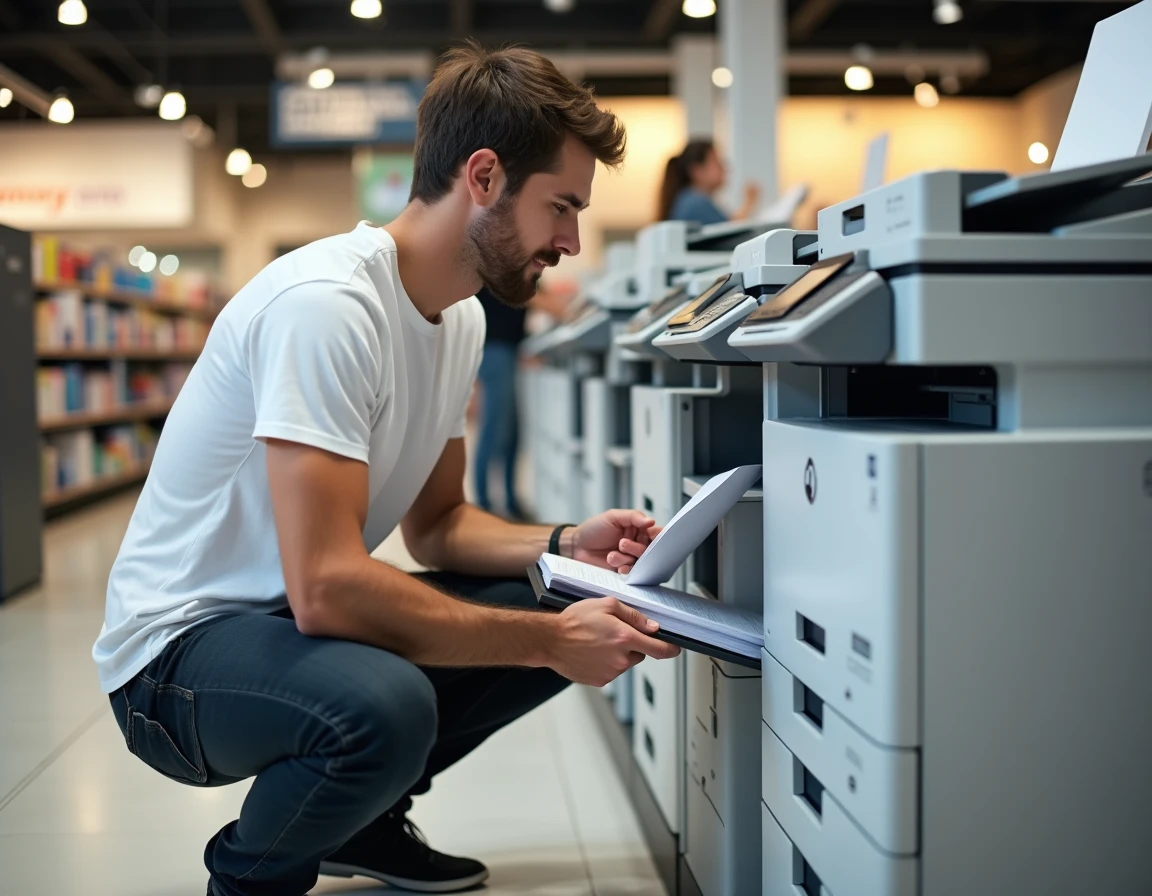
The recent kiosks installed in some Leclerc stores use better quality printing technologies than a few years ago (thinner papers, sharper outputs). This upgrade makes the resolution defects of source files more visible.
For a document containing visuals (poster, flyer, photo), a resolution of at least 300 dpi at the final print size remains the standard. Below this, the risk of pixelation or blurriness increases significantly, even on a public kiosk.
Check the resolution before leaving
Here are some concrete guidelines to avoid wasting pages:
- A photo taken with a recent smartphone generally exceeds 300 dpi for an A4 print, but aggressive cropping can lower the effective resolution
- An image downloaded from a social network is often compressed below 100 dpi, insufficient for any print larger than postcard size
- A chart exported from a spreadsheet must be saved in high resolution (option available in Excel or Google Sheets) to avoid blurriness in the legends
The resolution of the source file is the primary factor of quality. Some users attribute poor rendering to the kiosk when the problem originates from the source file, not the machine.
Preparing files remotely via the cloud: the underutilized method
Most users go to the store with a USB drive or send their file via email to a kiosk workstation. A third option exists that saves time: prepare your documents at home and store them in the cloud (Google Drive, Dropbox, iCloud) before coming just to start the printing.
This method has a concrete advantage. It allows you to check the PDF rendering on another device (tablet, second computer) before heading out. If the layout is correct on two different screens, it will be on the kiosk.
Cloud or USB drive: limits to know
Not all Leclerc kiosks offer cloud access. Availability depends on the model installed and the store’s configuration. However, the USB port remains universal on self-service kiosks.
- USB drive: works everywhere, but requires formatting to FAT32 if the drive exceeds a certain capacity (older kiosks do not always read NTFS)
- Cloud: quick access, eliminates the risk of forgetting or defective drives, but requires a Wi-Fi connection in-store or the phone’s 4G to retrieve the file
- Email: backup solution, but large attachments (multi-page documents, high-resolution photos) are sometimes truncated or rejected by the kiosk
Leclerc printing prices: why prices vary from one store to another
Printing prices are not set nationally by the chain. Each Leclerc store defines its own pricing structure, which explains the discrepancies observed between two points of sale just a few kilometers apart.
Several variables influence the price displayed on the kiosk:
First, the color mode. A black and white page costs significantly less than a color page. Some stores charge double or triple for color compared to black and white. Next, the format: an A3 print, when available, represents a notable additional cost compared to the standard A4.
Quantity also plays a role. Some kiosks offer a volume discount starting from a certain amount, but this option is not widespread. The accepted payment methods (credit card, cash, sometimes Leclerc loyalty card) also vary from store to store.
Compare before you go
Calling the store’s reception or checking the local page of the targeted Leclerc remains the most reliable way to know the current prices. No national pricing structure is published on the chain’s website, making remote comparison difficult without this prior step.
The choice between in-store printing and home printing depends on volume and frequency. For a one-time need of a few pages, the Leclerc kiosk remains a quick and accessible solution. For regular prints or demanding visual documents, investing in a personal printer often proves cheaper over time.
Ultimately, the reliability of the output compared to the prepared file matters more than the unit price per page. A well-configured PDF and sufficient resolution avoid most disappointments in-store.